
This section is a quick start guide to help you to get acquainted with how to store your procedure DiCom CD into the JVS-DiComPlus storage device.
Adding new case
- For adding new case click on the NEW CASE button which appears on the toolbar.
Note: Before clicking new case please enter CD/DVD in the CD/DVD drive.
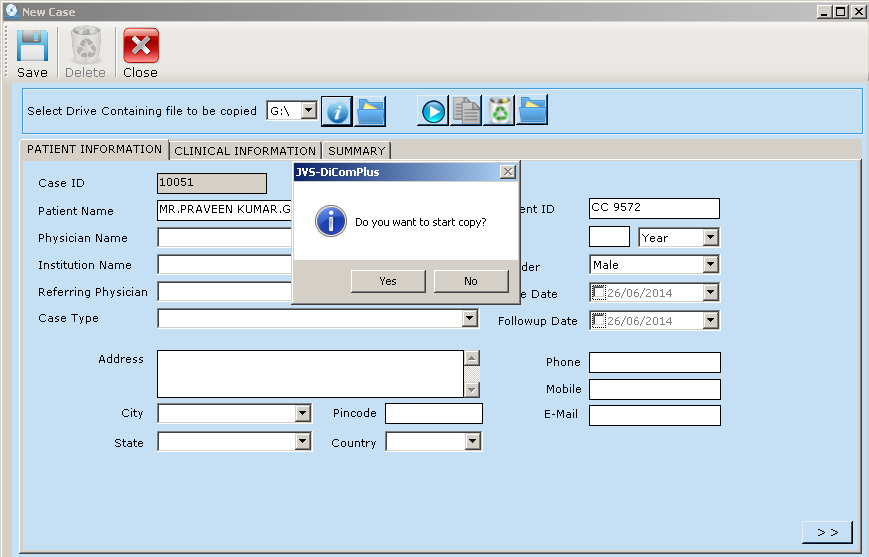
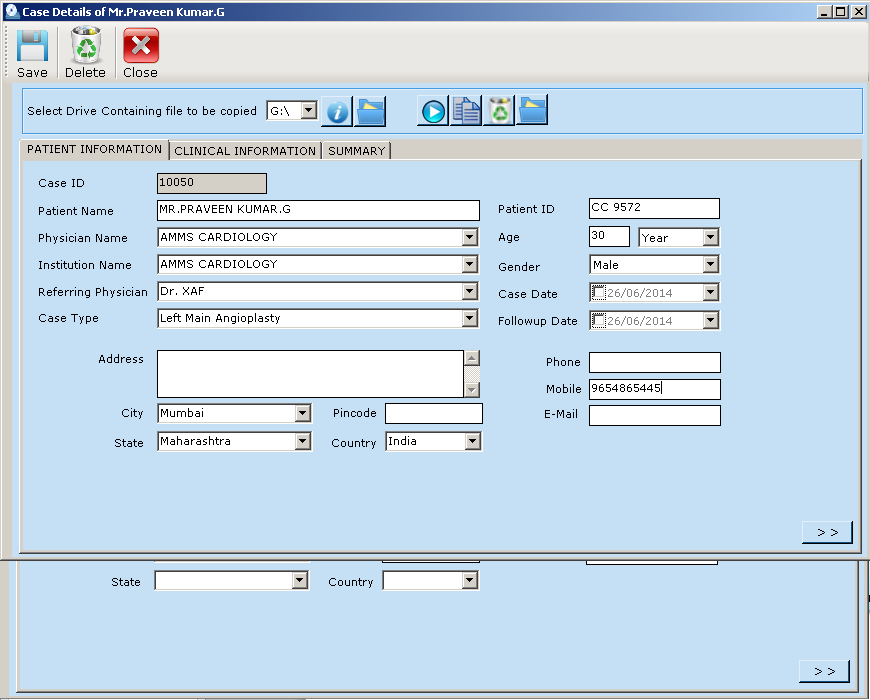
- Patient & Case Details are automatically filled up from the CD. You will be asked to start copying files. Click YES to start the copy process.
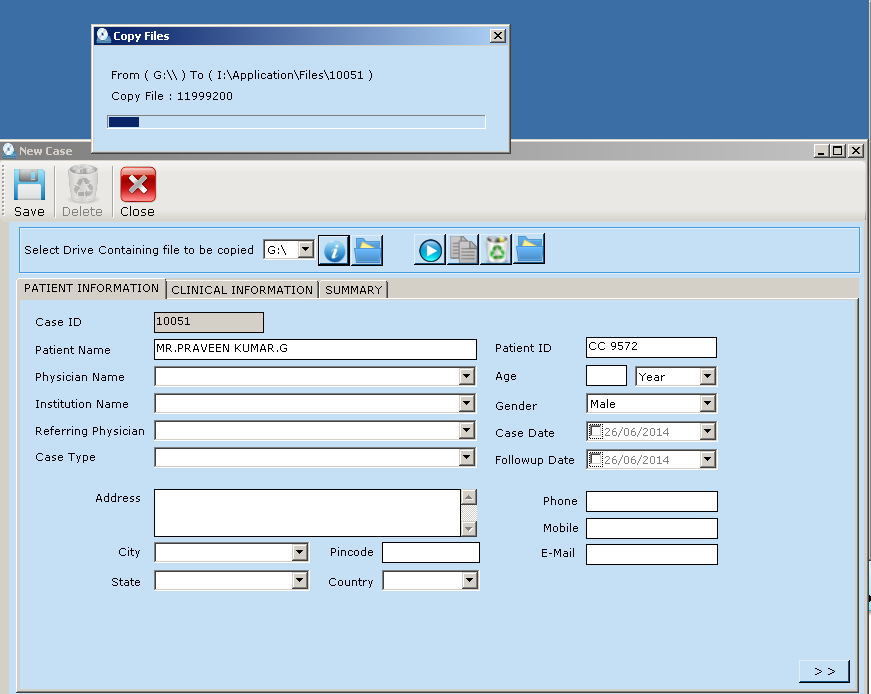
- After the copy process is started you can update case details.
Adding clinical information of case
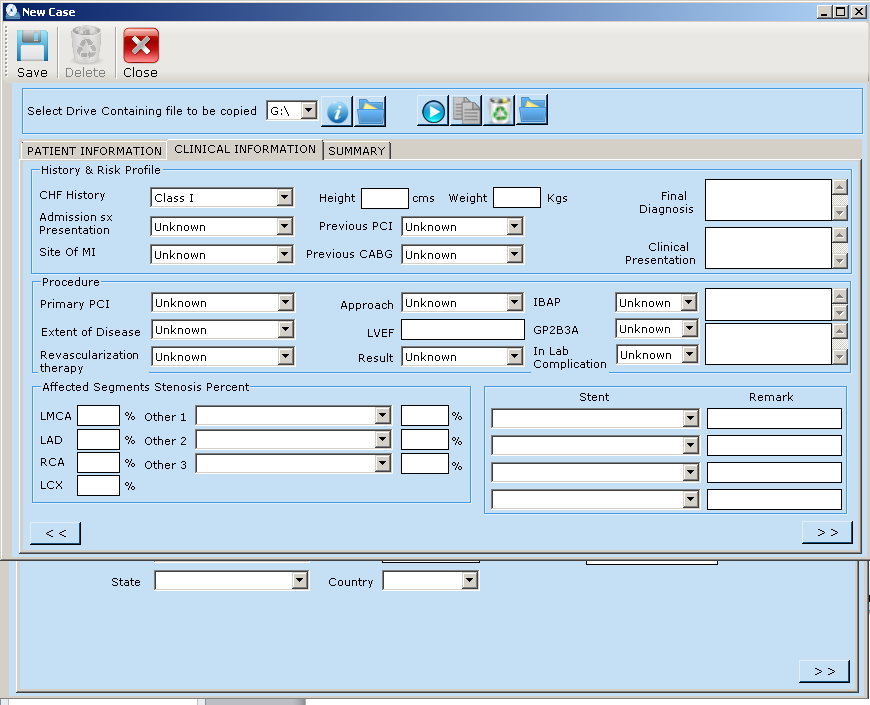
- You can fill up other information related to patient when software copies the CD
- Filling up clinical information of the patient is the part of the adding new case
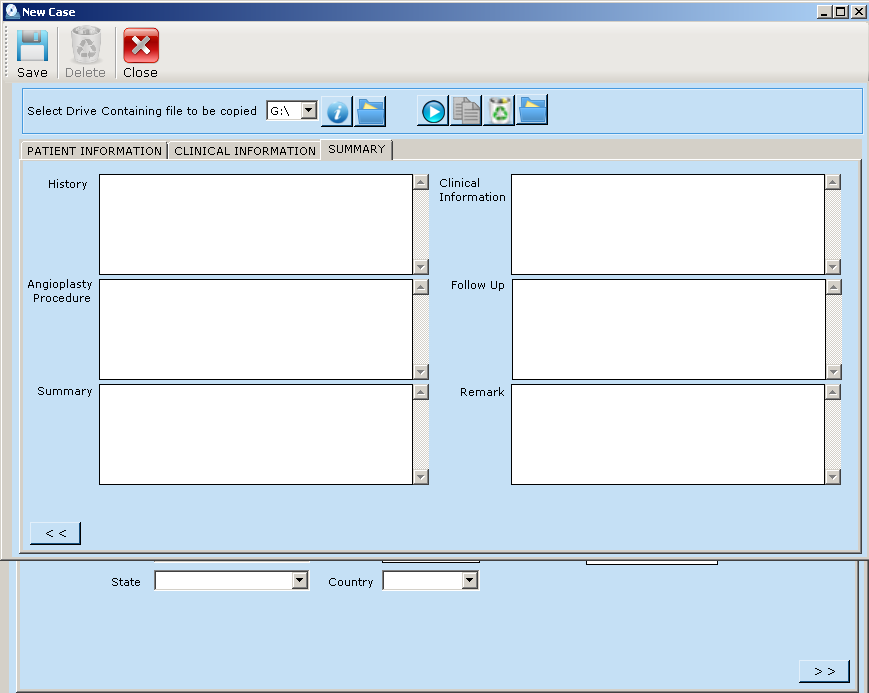
- You can also fill up the patient summary
Saving new case
- Save your new case by click on save button.
Note: Always Save your case after add new case and editing in the case.
Editing case details
- For editing in the particular case, you have to select the patient from the main screen by scrolling down.
- To edit in the case click on the Edit button.
- By double clicking on the patient from the main screen, you can edit in the case.
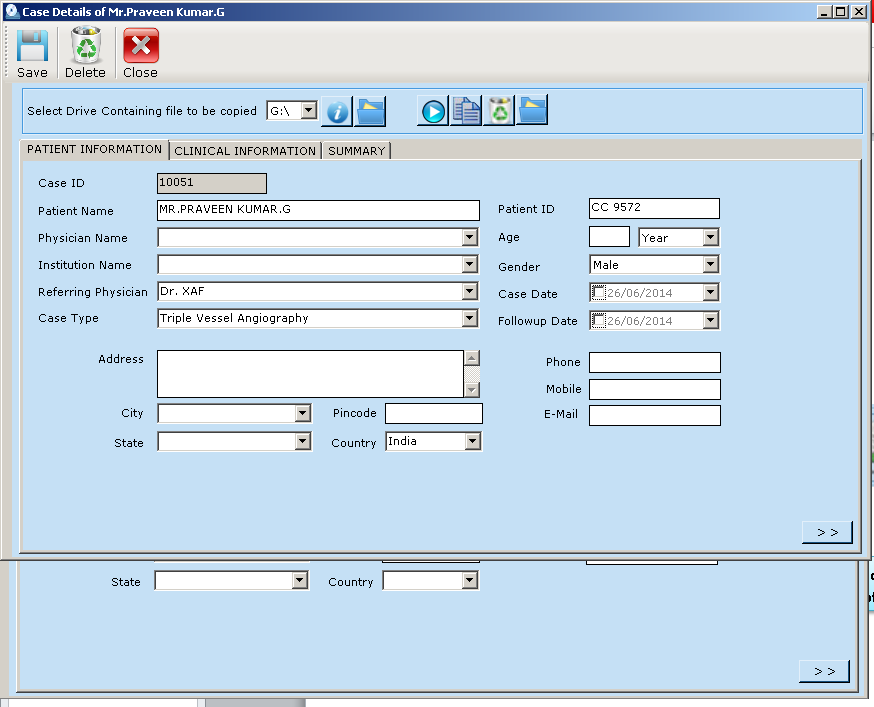
- Open the case detail of the patient.
Comments
0 comments
Please sign in to leave a comment.