
1. Clinical Analysis:
To generate the reports of any section, click on the clinical Analysis, and this dialog box will be displayed below:
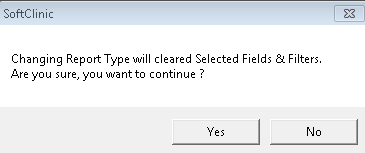
After choosing the option between yes or no, this window will be open, where you can generate the report by selection the entries and filling up the required fields.
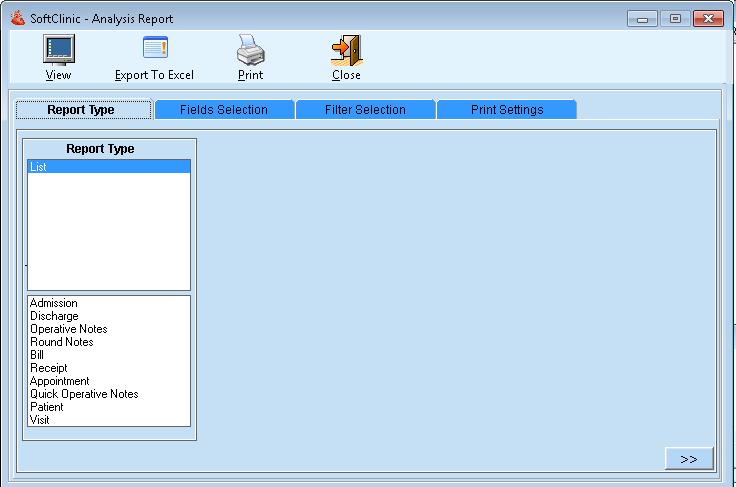
After filling up the fields, you can generate the report and export the report into the excel form or print it.
2. MIS Report
Click on MIS Report on vertical outlook bar on the left side of the screen.
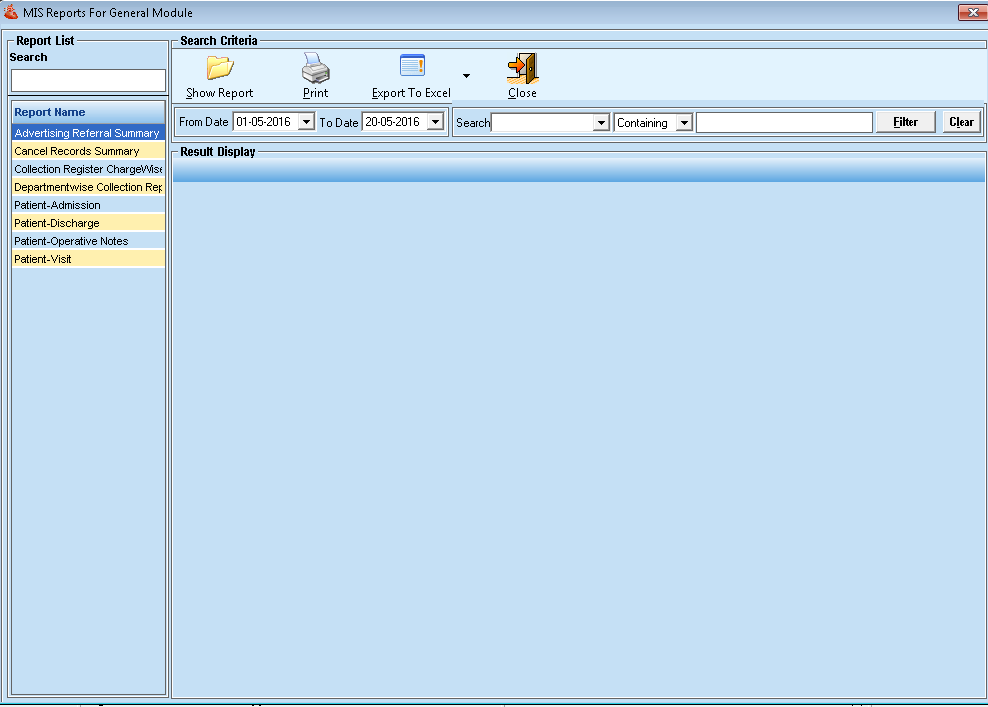
- This report is to view the list of patients that have visited hospital/clinic through any kind of advertisement given by hospital/clinic.
- Fill all details and click on “Show Report”.
- Also, you can view/export the report to excel by clicking on option “Export to Excel”.
3. Clinical Reports
Click on Clinical Reports on vertical outlook bar on the left side of the screen.

- On the left side of the report, you will see various options from which you can select the type of report you want to view.
- For different main options there are more sub-options of which are listed below :
|
Patient Details |
To view the chart or report of Patient Registration Details. |
|
Visit Details |
To view the chart or report Visit Details. |
|
Appointment Details |
To view the chart or report Appointment Details. |
|
Operative Notes |
To view the chart or report Operative Notes. |
|
Visit Diagnosis Details |
To view the chart or report Visit Diagnosis Details. |
Graphical presentation of data
BAR CHART:
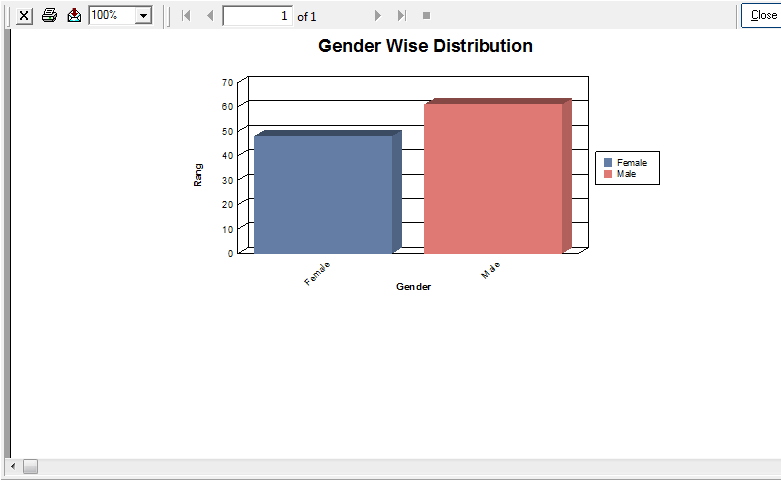
- To open the below screen click on “Report” from the main menu and then click on clinical Reports then select particular module.
- Select Parameter from list then select the bar chart and click “Show report” option, it will show a screen as under :
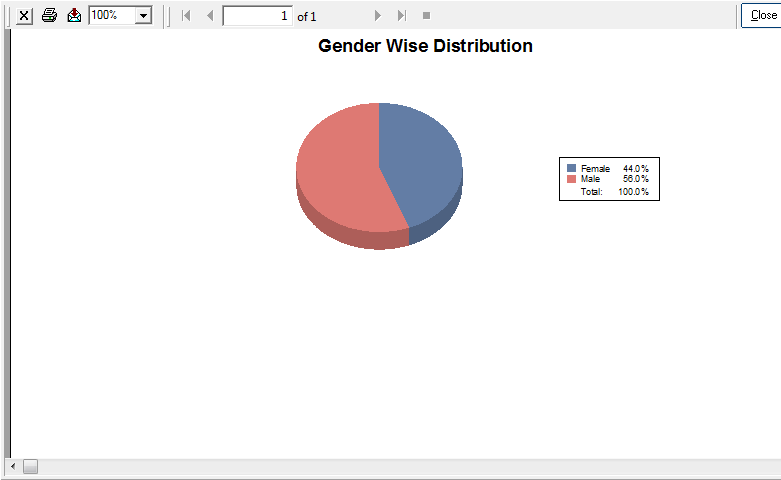
PIE CHART:
- To open the below screen click on “Report” from the main menu and then click on the clinical report then select the module from the list.
- Fill all details then select the pie chart and click “Show report” option, it will show a screen as under:
4. Patient- Labels:
Click on the patient labels to generate the report of any patients.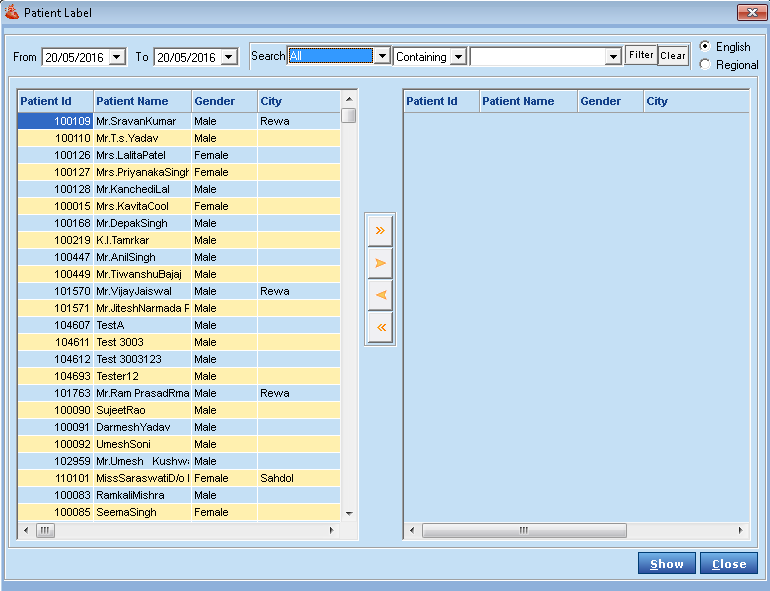
Comments
0 comments
Please sign in to leave a comment.