
By clicking on the Pharmacy module, there are many sub-sections in it.
1. Sales Invoice:
- By applying the Search filters, it will display the list of all the Sales Invoices.
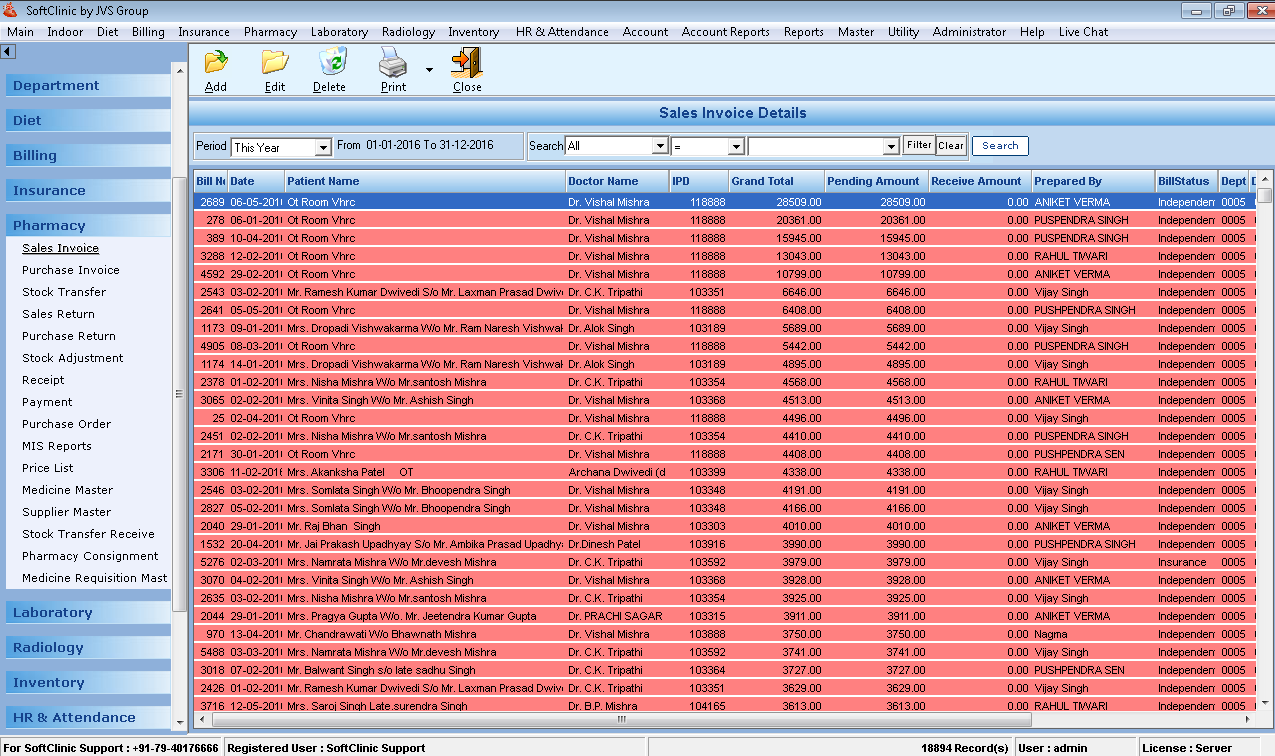
- Click on Add Button to add new sales invoices of any particular patient.
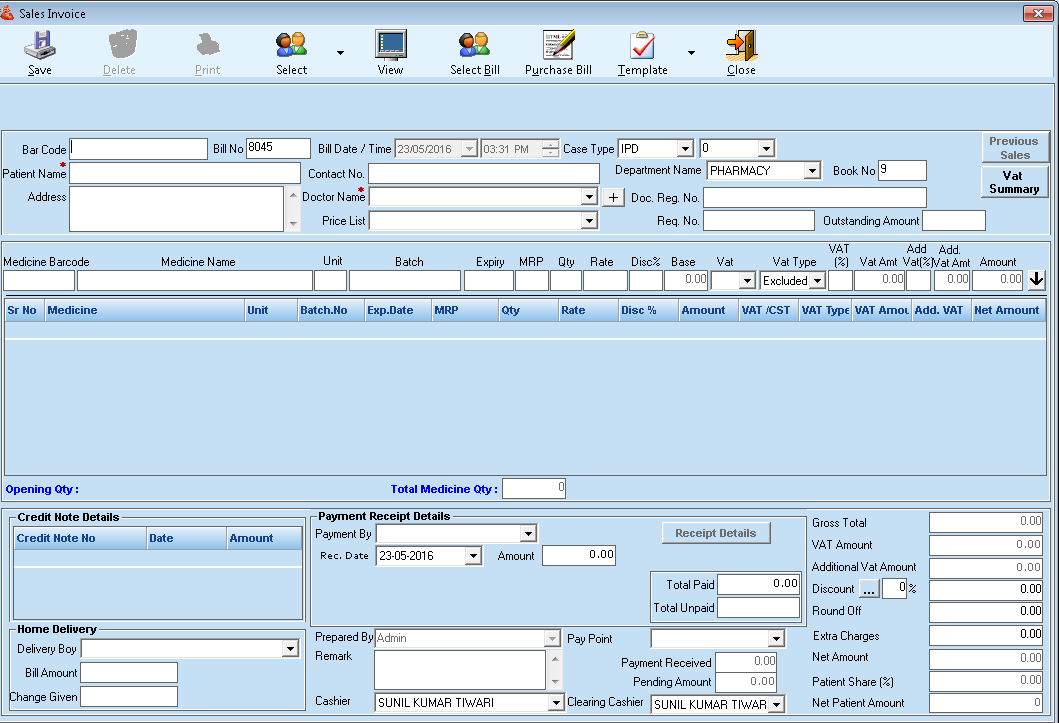
- You can submit new patient details or can add existing patients data for the sales invoices.
- After filling up the full information , click on the Save button.
- By clicking on the visit details of the particular patient , then it will show the view of the sales invoice report.
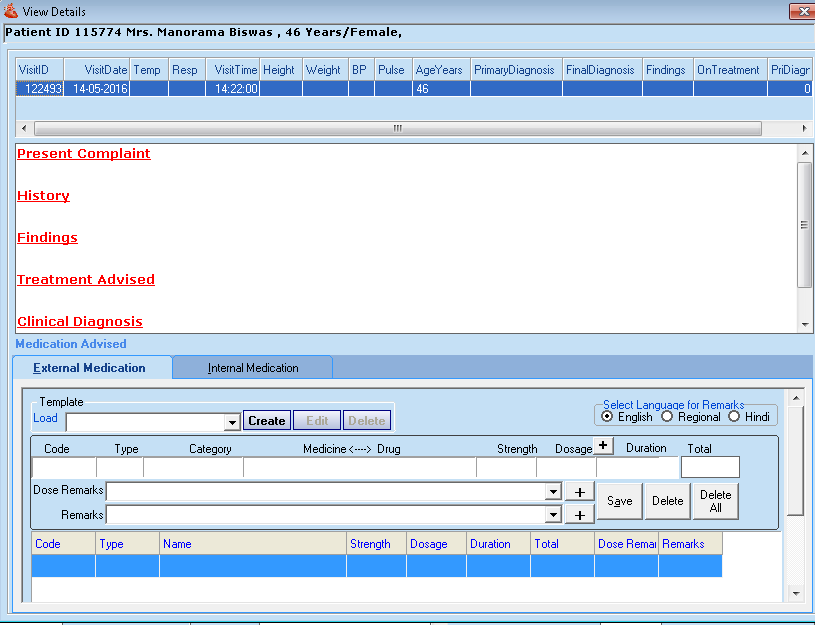
- You can also edit or delete the existing sales invoices of the patient.
2. Purchase Invoice:
- By applying the Search filters, it will display the list of all the Purchase Invoices.
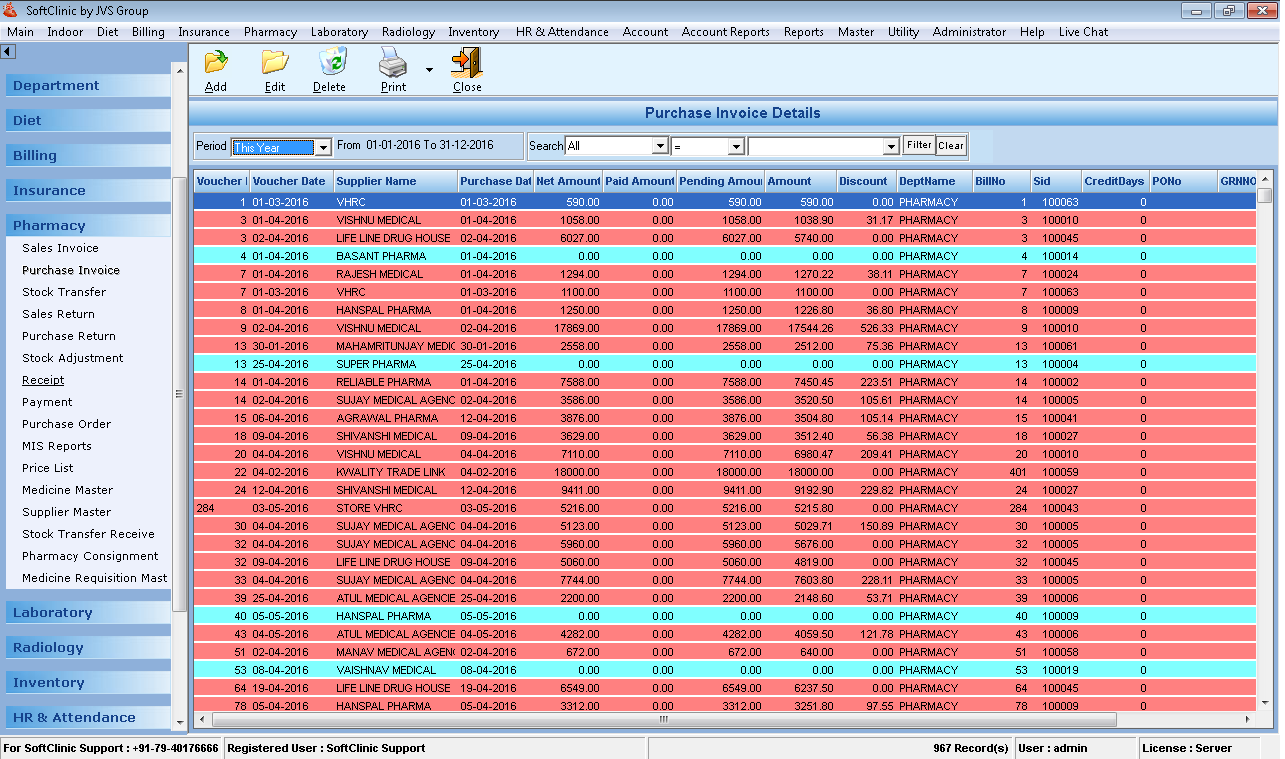
- Click on Add Button to add new Purchase invoices of any particular Supplier.
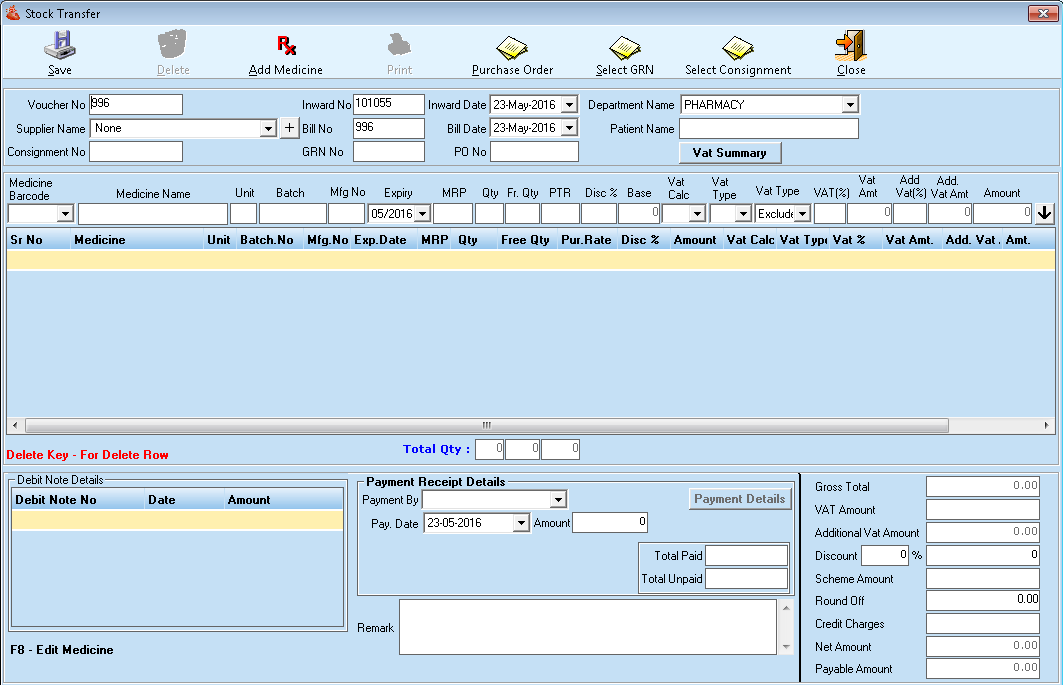
- You can submit new patient details or can add existing patient data for the Purchase invoices.
- After filling up the full information , click on the Save button.
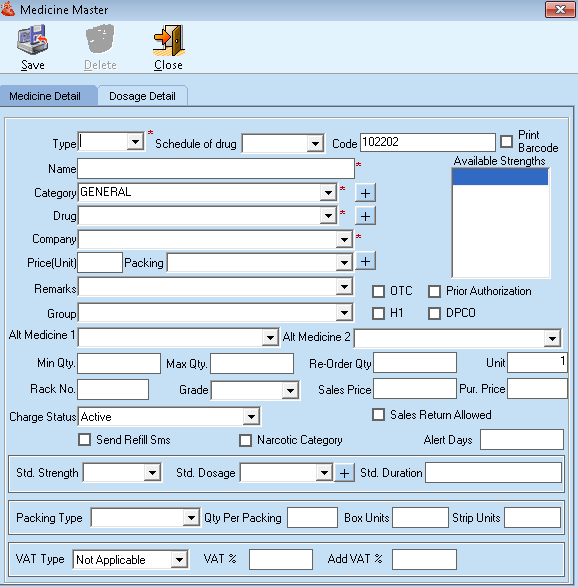
- By clicking on the ADD Medicine, you can add any new medicine details into the database.
- Choose the Purchase Order, Select GRN,& Select Consignment.
- Click on the Save Button.
- You can also edit or delete the existing Purchase invoices of the supplier.
3. Stock Transfer:
- Click on Stock Transfer from the Pharmacy Module.
- Click on ADD Button, to add new departmental stock transfer details.

- Fill up the full form then submit by clicking on the save button.
- You can also take out a print by selecting the template or format for the report.
- Edit or Delete- You can also edit or delete the existing departmental stock transfer details from the list.
4. Sales Return:
- Click on Sales Return from the Pharmacy Module. It will display the list of sales returns as per the applied filters.
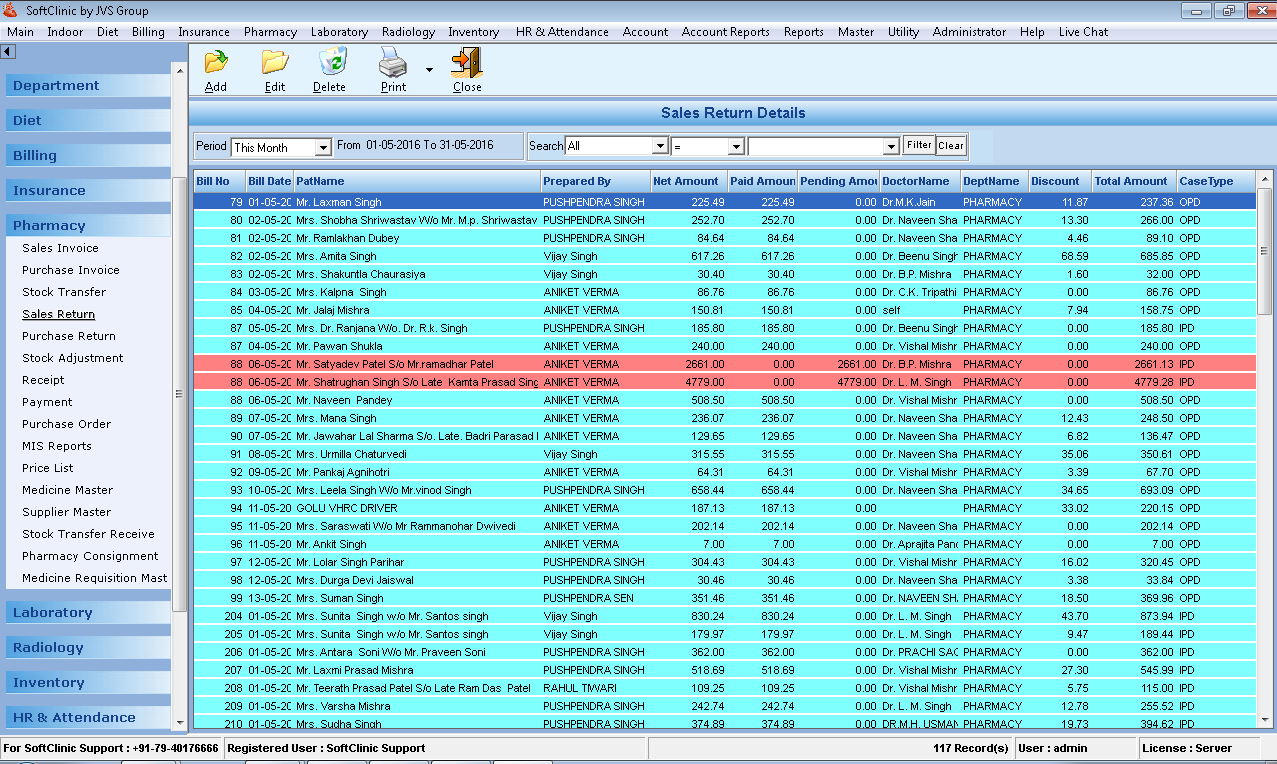
- Click on ADD Button, to add new sales return details.
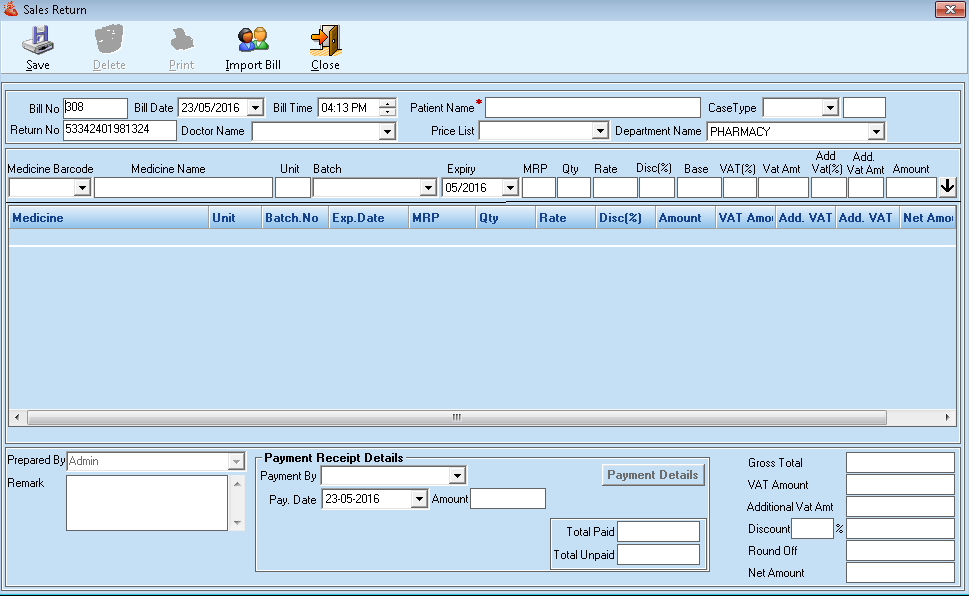
- Fill up the full form then submit by clicking on the save button.
- You can also take out a print by selecting the template or format for the report.
- Edit or Delete- You can also edit or delete the existing departmental stock transfer details from the list.
5. Purchase Return:
- Click on Purchase Return from the Pharmacy Module. It will display the list of purchase return details as per the applied filters.
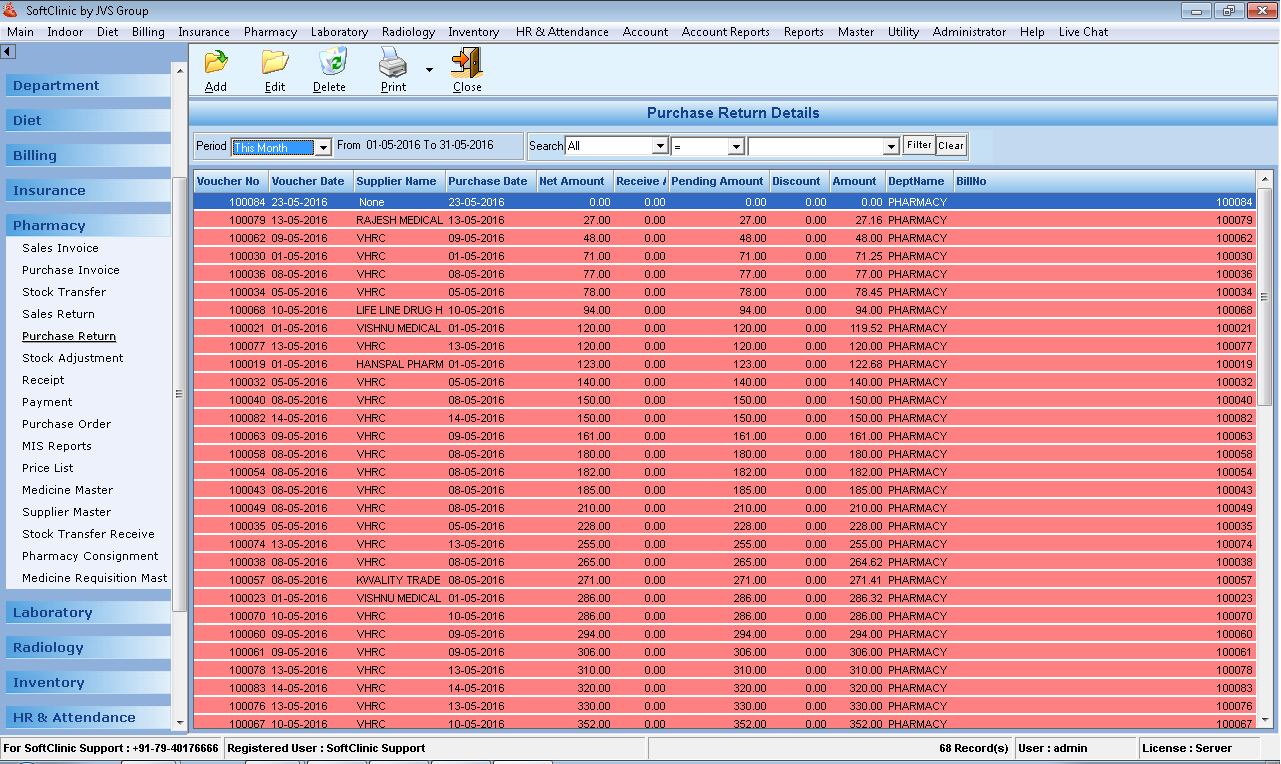
- Click on ADD Button, to add new Stock Receive details.
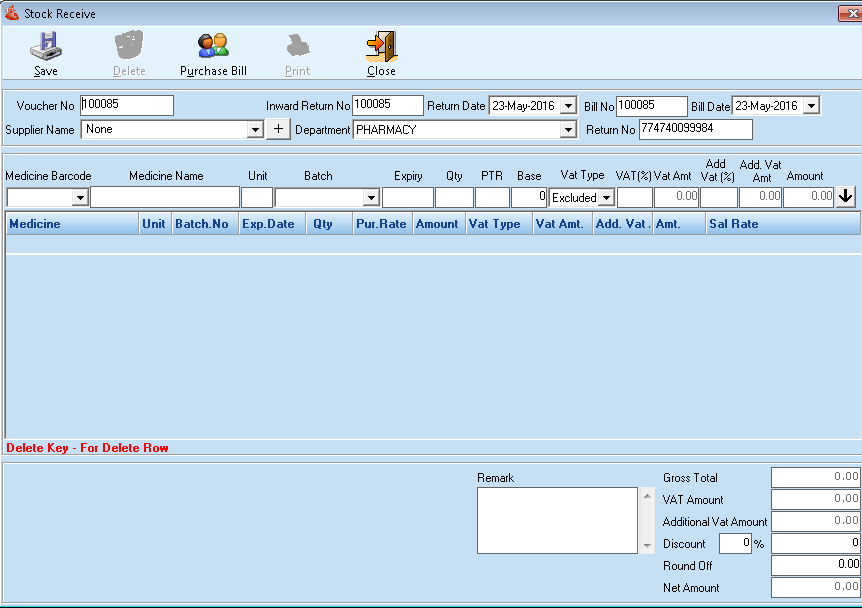
- Fill up the full form then submit by clicking on the save button.
- You can also take out a print by selecting the template or format for the report.
- Edit or Delete- You can also edit or delete the existing Purchase Return details from the list.
6. Stock Adjustment :
- Click on Stock Adjustment from the Pharmacy Module. It will display the list of purchase return details as per the applied filters.
- Click on ADD Button, to add new Stock Adjustment details into the database.
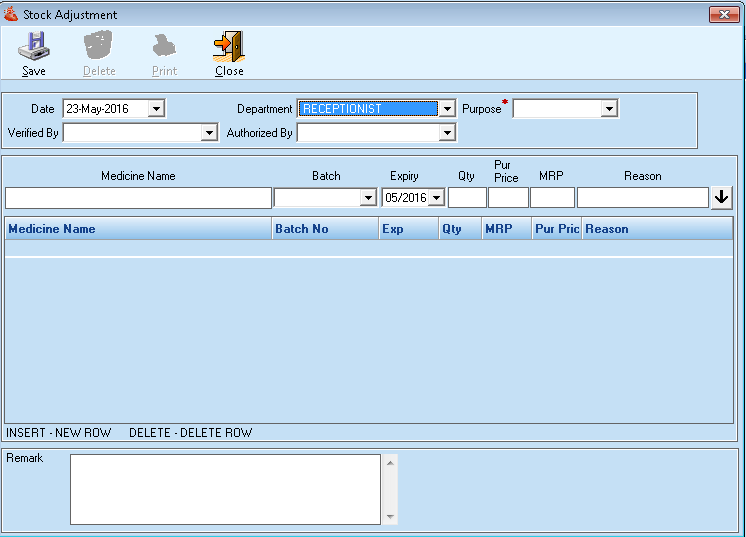
- Fill up the full form then submits by clicking on the Save button.
- You can also take out a print by selecting the template or format for the report.
- Edit or Delete- You can also edit or delete the existing Stock Adjustment details from the list.
7. Receipt :
- Click on Receipt from the Pharmacy Module. It will display the list of payment receipt of the patients as per the applied filters.
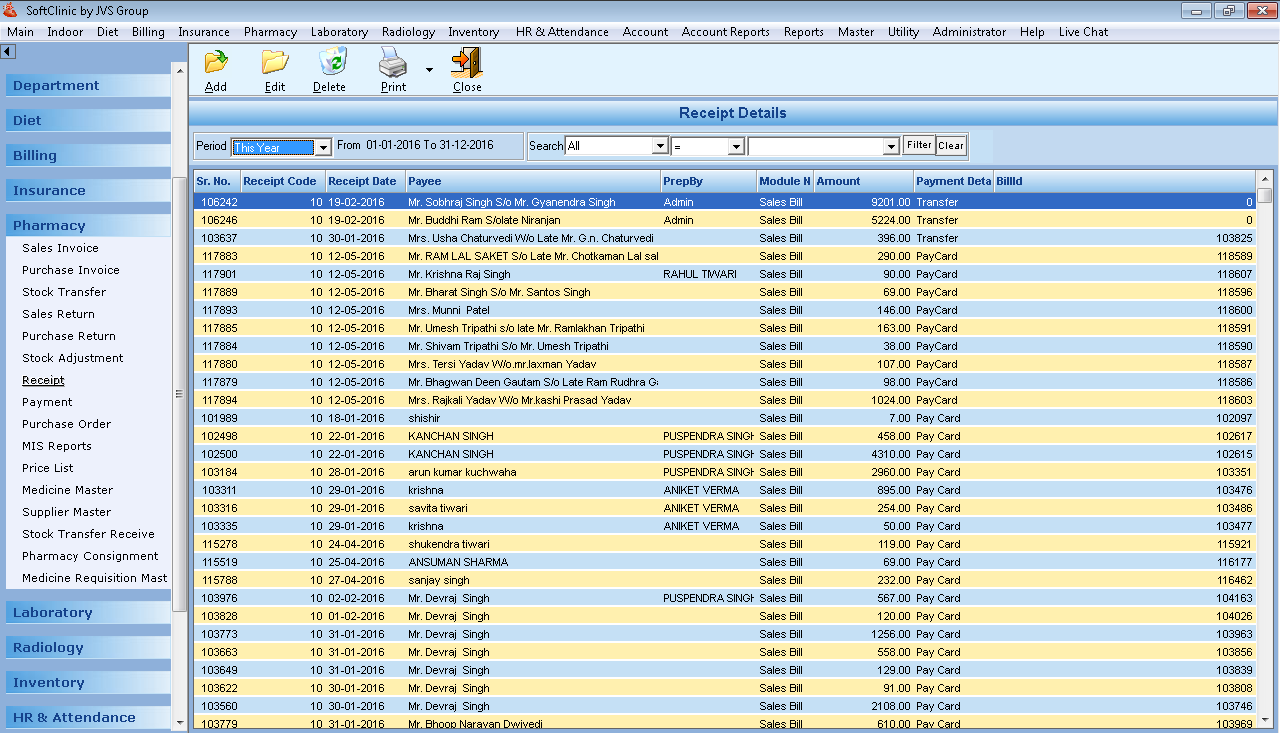
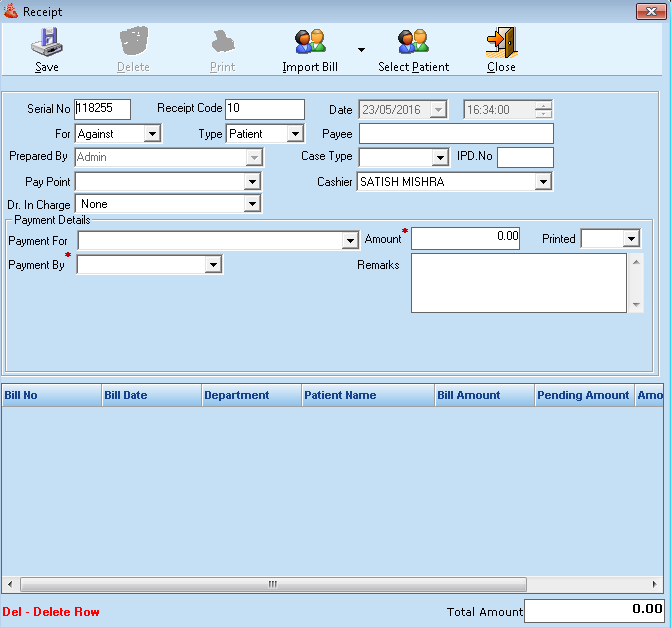
- Fill up the full form then submits by clicking on the Save button.
- You can also take out a print by selecting the template or format for the report.
- Edit or Delete- You can also edit or delete the existing Stock Adjustment details from the list.
8. Payment :
- Click on Payment from the Pharmacy Module. It will display the list of payment details of the patients as per the applied filters.
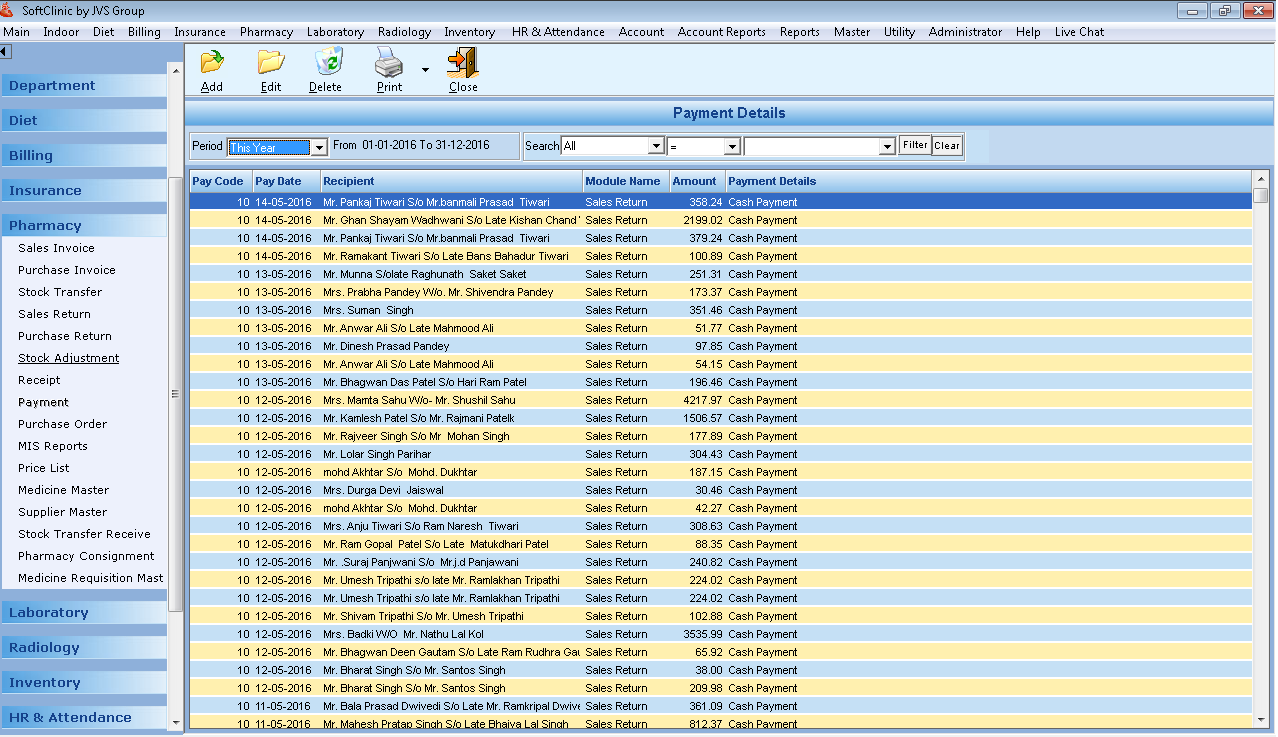
- Click on ADD Button, to generate the new payment of the patient into the database.
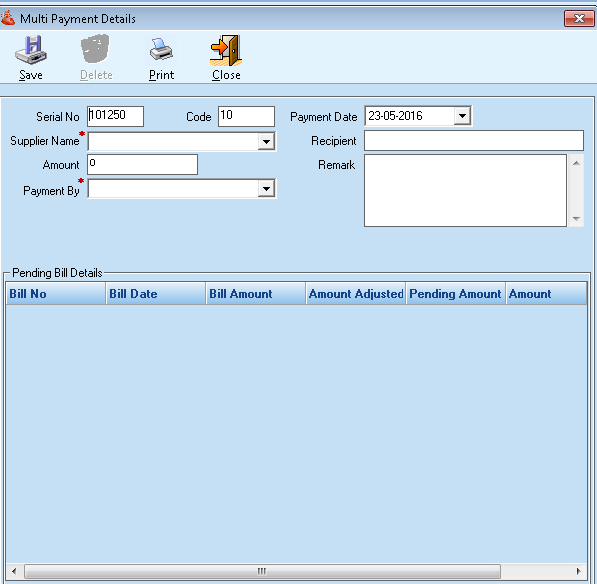
- Fill up the full form then submits by clicking on the Save button.
- You can also take out a print by selecting the template or format for the report.
- Edit or Delete- You can also edit or delete the existing Payment details from the list.
9. Purchase Order :
- Click on Purchase Order from the Pharmacy Module. It will display the list of purchased orders as per the applied filters.
- Click on ADD Button, to add new purchase order into the database.
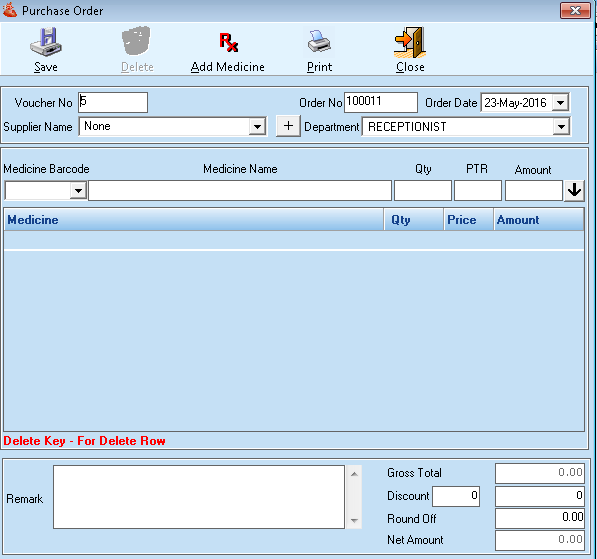
- Fill up the full form then submit by clicking on the Save button.
- You can also take out a print by selecting the template or format for the report.
- Edit or Delete- You can also edit or delete the existing Purchase order details from the list.
10. MIS Reports:
Click on the MIS Reports to generate any report related to Pharmacy module.
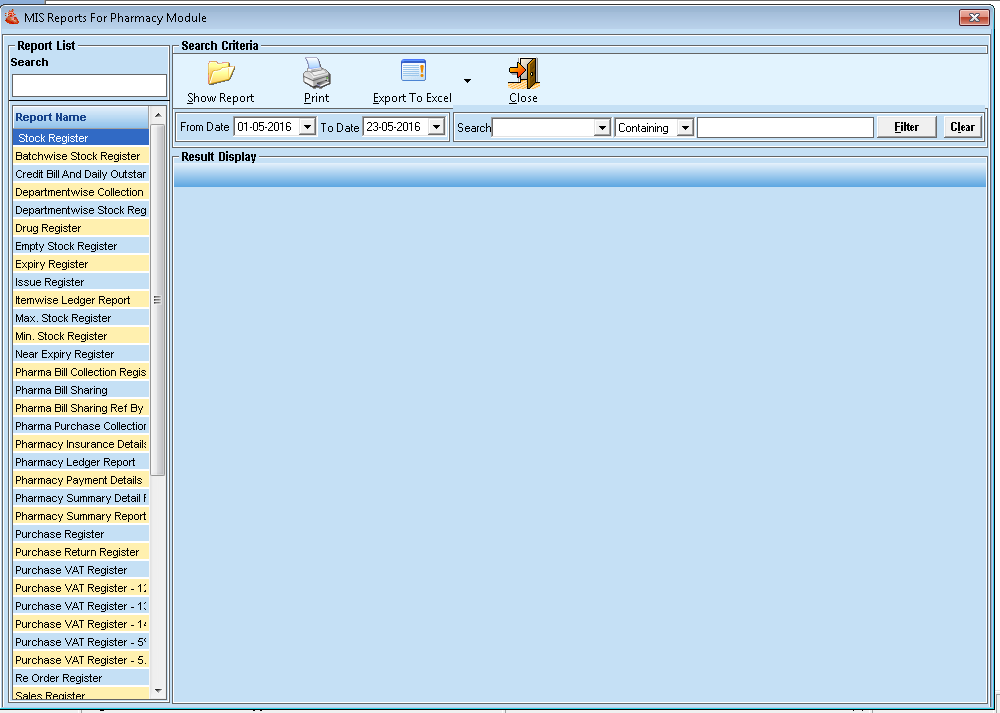
- You can also take out a print by selecting the template or format for the report and can export into the excel format for the external use.
11. Price List :
- Click on Price List from the Pharmacy Module. It will display the list of Price Lists as per the applied filters.
- Click on ADD Button, to add new price lists into the database.
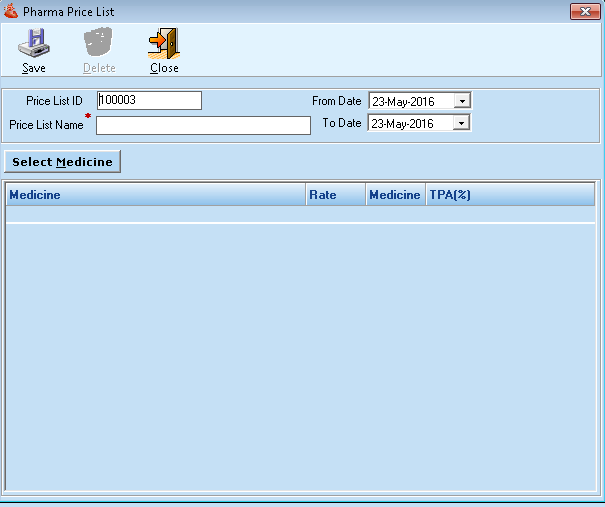
- Fill up the full form then submit by clicking on the Save button.
- Edit or Delete- You can also edit or delete the existing Purchase order details from the list.
12. Medicine Master :
- Click on Medicine Master from the Pharmacy Module. It will display the list of medicines as per the applied filters.
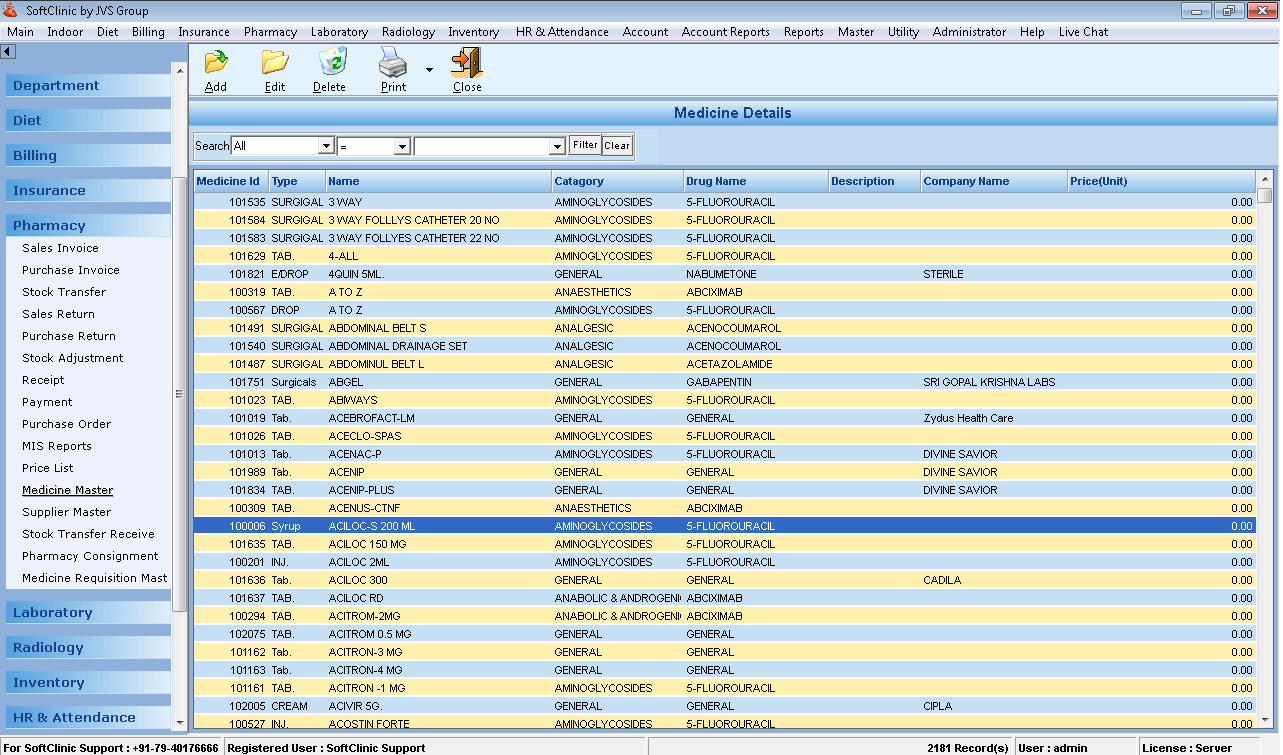
- Click on ADD Button, to add new medicines with all the details into the database.
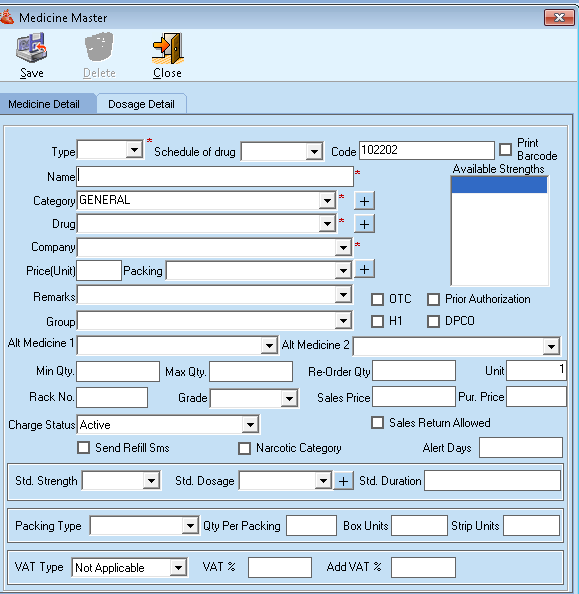
- Fill up full form like Medicine detail and dosage detail of the medicine and click on the save button, to save all the medicine information.
- Edit or Delete- You can also edit or delete the existing Medicine details from the list.
13. Supplier's Master :
- Click on Supplier's Master from the Pharmacy Module. It will display the list of Supplier as per the applied filters.
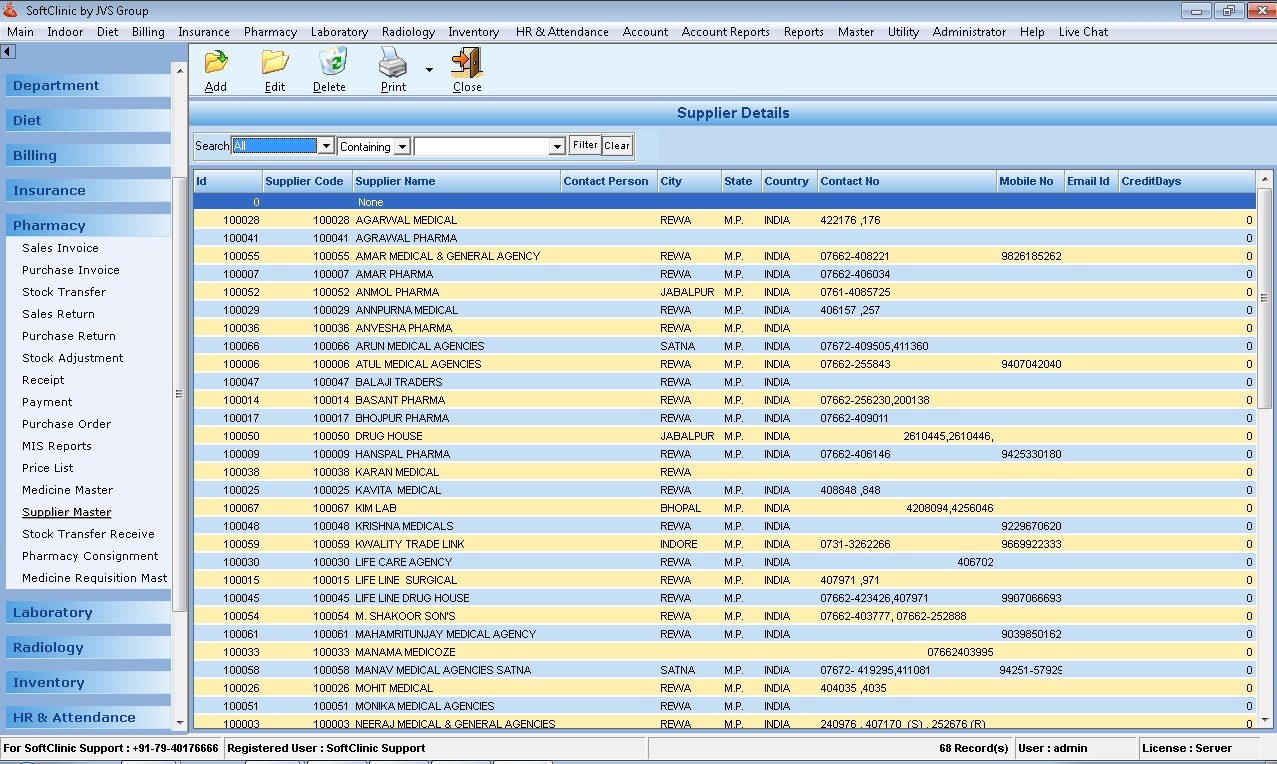
- Click on ADD Button, to add new suppliers with all the details into the database.
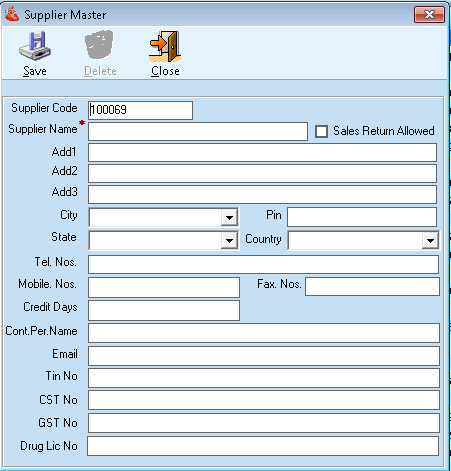
- Fill up full form of the suppliers detail and click on the save button, to save all the supplier information.
- Edit or Delete- You can also edit or delete the existing supplier's details from the list.
14. Medicine Requisition Master :
- Click on Medicine Requisition Master from the Pharmacy Module. It will display the list of Medicine Requisition as per the applied filters.
- Click on ADD Button, to add new Requisition with all the details into the database.
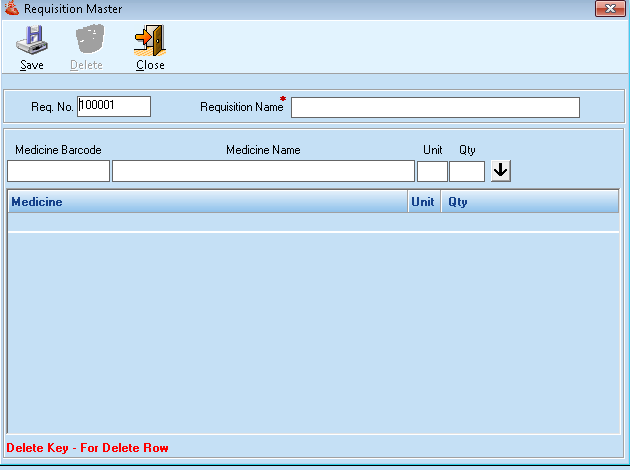
- Fill up full form of the suppliers detail and click on the save button, to save all the Requisition information.
- Edit or Delete- You can also edit or delete the existing Requisition details from the list.
Comments
0 comments
Please sign in to leave a comment.